CygNet Service Diagnostics Utility
The CygNet Service Diagnostics utility provides access to real-time service, site, and machine statistics. Data presented in the Service Diagnostics data grid can be filtered, sorted, printed, exported to a CSV file, refreshed at regular intervals or on demand, and trended. You can view service information and log settings for any service. You can also save configuration settings to an .xml file, import settings from or export settings to an XML file, and settings can be set to persist from utility instance to instance.
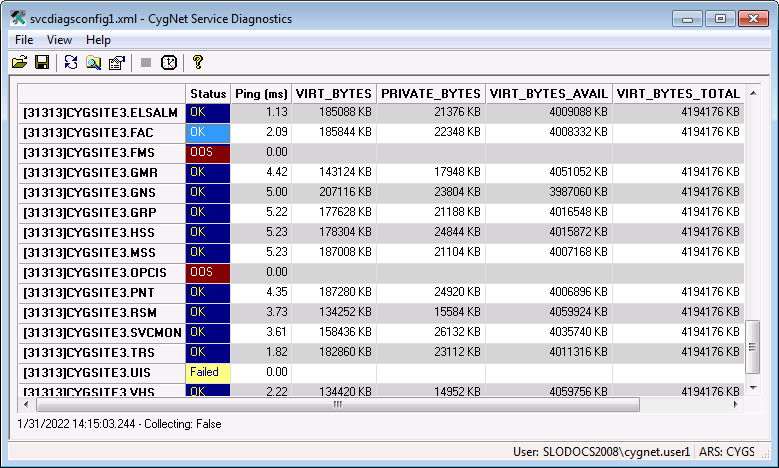
By default the data grid always displays the status of the connected services and the time it takes to ping the service in milliseconds (ms). Possible status values are OK, OOS (out of service), Failed, or Defined.
See Info Items for more information.
The CygNet Service Diagnostics utility is stored in the CygNet\Utilities directory (SvcDiags.exe) on the host server.
Starting Service Diagnostics
Installing and Launching
To install and launch (start) the application or utility using version management:
- Use CygNet Client Installer to install and launch the application. Once installed you can use CygNet Client Installer to start the application.
-OR-
- If previously installed, click Start > All Programs > CygNet > <name of the application or utility> or double-click the desktop shortcut.
Alternatively, browse to the CygNet\Utilities directory using Windows Explorer and double-click the program icon. You can also start an application or utility from a command line. These methods do not provide version management.
When you open the CygNet Service Diagnostics utility the following dialog box appears; it can be customized to show user-selected service info items.
|
CygNet Service Diagnostics utility |
User Interface
The CygNet Service Diagnostics utility consists of a menu bar, a toolbar, a display grid, and a status bar. The following tables list the options accessible using the menus, toolbar, and context menu.
Menus
Three tabs are available on the menu bar to access various service diagnostics functionality, via the File, View, and Help menus.
|
Menu tabs |

File Menu
The File menu provides access to the following options.
| Option | Description | Shortcut | Tool |
|---|---|---|---|
|
Open File |
Open a previously saved Service Diagnostics configuration file |
Ctrl+O |
|
|
Save As |
Saves current settings to a new Service Diagnostics configuration file |
Ctrl+S |
|
|
Export Data |
Exports info items data to a CSV file. Specify a file name and path and click Save. You cannot export while the utility is running |
||
|
|
Prints info items data. You cannot print while the utility is running. Specify a printer and click OK |
||
|
Recent Files |
Lists all recently opened Service Diagnostics configuration files Click on any file name to change to the settings configured in that file. |
||
|
Exit |
Closes the CygNet Service Diagnostics utility |
|


View Menu
The View menu provides access to the following options.
| Option | Description | Shortcut | Tool |
|---|---|---|---|
|
Properties |
Opens the Service Diagnostics Grid Properties dialog box where you can configure the info items displayed in the utility. See Configuring the CygNet Service Diagnostics Utility for more information. |
Ctrl+P |
|
|
Refresh Grid |
Manually refresh the contents of the grid. The automatic refresh rate is configured on the grid display properties. |
Crtl+R |
|
|
Service Info |
Opens the CygNet Service Information dialog box for the currently selected service. You can also right-click any cell and select View Service Info. See Viewing Service Details and Info Items for more information. |
Ctrl+I |
|
|
Service Users |
Opens the Service Active Users dialog box where you can see who is using your service(s). See Viewing Service Active Users for more information. |
Ctrl+U |
|
|
Summary Grid |
Enables you to display a Summary Statistics grid that displays applicable service overview information such as number of Unique Hosts, Total Services, and services are in each state: OK, FAILED, or Out Of Service. Options are as follows.
|
Ctrl+T Ctrl+B Ctrl+H |


Help Menu
The Help menu provides access to the following options.
| Option | Description | Shortcut | Tool |
|---|---|---|---|
|
About CygNet Service Diagnostics |
Click to open the About CygNet Service Diagnostics dialog box to view application information. Available information includes the following:
In addition to information about the application, the About box includes the following buttons:
|
|


Toolbar
The toolbar contains commands for file management, refresh, properties, and timer functions of the Service Diagnostics utility.
|
Toolbar |

| Tool | Command | Description | Menu > Option | Shortcut |
|---|---|---|---|---|
|
|
Open File |
Open a previously saved Service Diagnostics configuration file. |
File > Open File… |
Ctrl+O |
|
|
Save File |
Save current settings to a new Service Diagnostics configuration file. |
File > Save As… |
Ctrl+S |
|
|
Refresh Grid |
Manually refresh the contents of the grid. The automatic refresh rate is configured on the grid display properties. |
View > Refresh Grid |
Ctrl+R |
|
|
Service Info |
Opens the CygNet Service Information dialog box for the currently selected service. You can also right-click any cell and select View Service Info. See Viewing Service Details and Info Items for more information. |
View > Service Info |
Ctrl+I |
|
|
Edit Properties |
Opens the Service Diagnostics Grid Properties dialog box where you can configure the info items displayed in the utility. See Configuring the CygNet Service Diagnostics Utility for more information. |
View > Properties |
Ctrl+P |
|
|
Stop Timer |
Click to stop data retrieval from the service. When the utility is running this icon is blue, when stopped it is gray. The timer and status is also displayed in the status bar. |
Available from Context Menu |
|
|
|
Start Timer |
Click to start data retrieval from the service. The refresh rate for retrieval is set in the Service Diagnostics Grid Properties dialog box. |
Available from Context Menu |
|
|
|
About CygNet Service Diagnostics |
Shows information about the current utility. |
Help > About CygNet Service Diagnostics |


Context Menu
The right-click context menu contains different options depending on where you click in the grid.
| Command | Description | Tool | Menu > Option | Shortcut |
|---|---|---|---|---|
|
Stop Timer Start Timer |
Click to stop data retrieval from the service. When the utility is running this icon is blue. The timer and status is displayed in the status bar. Click to start data retrieval from the service. The retrieval refresh rate for is set on the Service Diagnostics Grid Properties dialog box. |
|
||
|
Refresh Grid |
Manually refresh the contents of the grid. The automatic refresh rate is configured on the grid display properties. |
|
View > Refresh Grid |
Ctrl+R |
|
View Service Info |
Opens the CygNet Service Information dialog box for the currently selected service. See Viewing Service Details and Info Items for more information. |
|
View > Service Info |
Ctrl+I |
|
Edit Grid Properties |
Opens the Service Diagnostics Grid Properties dialog box where you can configure the info items displayed in the utility. See Configuring the CygNet Service Diagnostics Utility for more information. |
|
View > Properties |
Ctrl+P |
|
Enables you to select from a list of hard-coded, pre-configured sets of Info Items. You can select more than one list to display at a time. You can use Edit Grid Properties options to add new info items to your set as it is displayed or remove info items from the set as it is displayed; doing so does not affect sets on the Quick Sets list. Options are as follows.
See also Configuring Service Info Items. |
N/A |
|||
|
Add to trend |
For cells containing graphable service info items, displays an Info Item Graph trend for the selected data item. See Trending Service Info Items for more information. |
More:
 Configuring the CygNet Service Diagnostics Utility

